
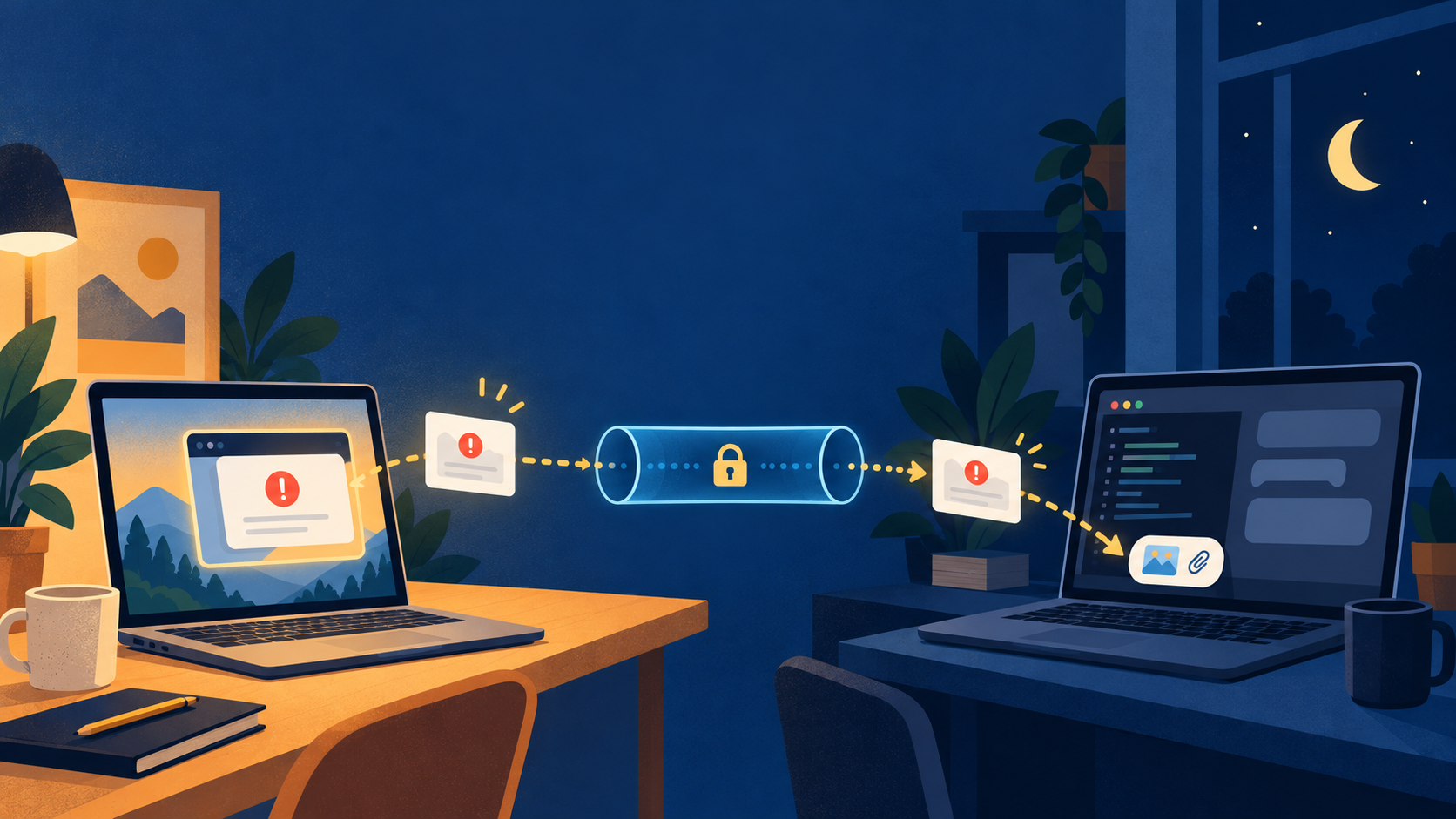
I got used to pasting screenshots into Claude Code: a broken layout, an error dialog, a chart. Cmd+V, and the agent sees it. Then I started running more agent sessions on other machines, and the paste just stopped working. In my new terminal it did nothing. In iTerm2 over mosh it pasted a path like /var/folders/…/clipboard-1234.png, which the remote Claude couldn’t open.
That path explains the whole thing. Terminals don’t send images. When you paste an image, the terminal writes it to a temp file on your laptop and pastes the file’s path. Claude sees an image path and attaches the file. On a remote machine the path points to nothing.
Claude’s own Ctrl+V doesn’t help either. It reads the clipboard of the machine Claude runs on, so it got whatever text was last copied over there. Universal Clipboard should have bridged two Macs on the same Apple ID, but it never delivered the image. My laptop’s clipboard had a PNG on it, and the remote Mac was still holding seven characters of old text. (Screen Sharing does sync the clipboard, but I’m not opening Screen Sharing to paste a screenshot into a terminal.)
So the job is to move the file myself.
The script
It does three things: save the clipboard image as a PNG, copy it to the remote host over ssh, and replace the clipboard with the remote path. Then a normal Cmd+V into the remote Claude pastes a path that exists, and Claude attaches it like any local screenshot.
Save it as ~/.local/bin/clip2remote and chmod +x it:
#!/usr/bin/env bash
# clip2remote
#
# Copies the image on this Mac's clipboard to a remote host and replaces the
# clipboard with the remote file's path. Paste that path (Cmd+V) into a Claude
# session running on the remote host and Claude attaches the image.
#
# Usage:
#   clip2remote          # send to devbox
#   clip2remote HOST     # send to another ssh host

set -euo pipefail

host="${1:-devbox}"
remote_dir="/tmp/clip2remote"
name="clip-$(date +%Y%m%d-%H%M%S).png"
local_file="$(mktemp -t clip2remote).png"
trap 'rm -f "$local_file"' EXIT

if ! osascript -e 'clipboard info' 2>/dev/null | grep -q 'class PNGf'; then
  echo "clip2remote: no image on the clipboard" >&2
  exit 1
fi

osascript - "$local_file" <<'APPLESCRIPT' >/dev/null
on run argv
  set f to open for access (POSIX file (item 1 of argv)) with write permission
  write (the clipboard as «class PNGf») to f
  close access f
end run
APPLESCRIPT

ssh -o BatchMode=yes -o ConnectTimeout=5 "$host" \
  "mkdir -p $remote_dir && cat > $remote_dir/$name" < "$local_file"

remote_path="$remote_dir/$name"
printf '%s' "$remote_path" | pbcopy
echo "$host:$remote_path (path copied, Cmd+V it into the remote Claude)"
Change devbox to whatever your ssh config calls the machine. The remote side only needs ssh, mkdir and cat, so a Linux box should work as well as a Mac. I’ve only tried it with Claude Code on a remote Mac; Codex I haven’t tested.
The hotkey
Running a script by hand between taking a screenshot and pasting it is the kind of friction that makes you stop taking screenshots. macOS Shortcuts can bind it to a key without installing anything:
- In Shortcuts, open Settings → Advanced and turn on Allow Running Scripts.
- Create a new shortcut and add a Run Shell Script action, shell set to
bash. -
Paste this in, so you get a notification with the result:
out=$("$HOME/.local/bin/clip2remote" 2>&1) || true osascript -e 'on run argv' -e 'display notification (item 1 of argv) with title "clip2remote"' -e 'end run' "$out" - Open the shortcut’s details (ⓘ), choose Add Keyboard Shortcut, and press ⌥⌘V.
Now it’s screenshot, ⌥⌘V, Cmd+V.
A few things that cost me time:
- The small × on an action in the Shortcuts editor deletes the action. It looks like it closes a details panel. I ended up with an empty shortcut, which
shortcuts runreports, accurately, as “Error: Empty Shortcut”. - Option+V on its own is a bad hotkey. macOS types “√” with it, and the app in front may grab it before Shortcuts does. ⌥⌘V works.
- Shortcuts runs scripts with a bare environment. ssh with a plain key file was fine for me, but if your key lives in an agent that Shortcuts can’t see, the copy step will fail. Run
shortcuts run <name>from a terminal to see what happens.
What terminals should do
This is a workaround, and terminals should fix it properly: when you paste an image into a remote session, upload it to that host and paste the remote path. Until then, it’s ten lines of bash and a hotkey.