
I liked the convenience of the AI-based dictation tools. The speech recognition is high quality, and they work the way dictation should: press and hold a key, talk, and the text shows up wherever you’re typing. But the privacy aspect bugged the hell out of me. My audio goes off to someone’s server, and after that I have no idea who reads it, what gets kept, or whether some AI training pipeline gets to chew on my thoughts forever. Once it’s gone, I’ve lost control of it.
Now I’ve solved it for myself. Apple provides native speech recognition APIs on the Mac: free, unlimited, and fully local. Nothing leaves the machine and the audio stays private. So I built Voice is Local on top of them, and I’m cancelling my subscription to the cloud one. It’s free and MIT-licensed.
I first called it Holos, which is Ukrainian for “voice”, because I think in Ukrainian. Apple’s new on-device model doesn’t do Ukrainian, though, and there are literally dozens of paid dictation products out there, all trying to make money. This one is free, open source, and keeps your voice on your own Mac, so the app’s name now says exactly that. The repository is still called holos, which reminds me to add Ukrainian once Apple supports it.
What it does
Voice is Local sits in the menu bar. You hold Right Option, talk, and let go. The words appear in whatever text field you’re in: Notes, Mail, a browser, ChatGPT’s input box, a terminal. They stream in while you’re still talking, so you can watch the sentence arrive rather than wait for it.
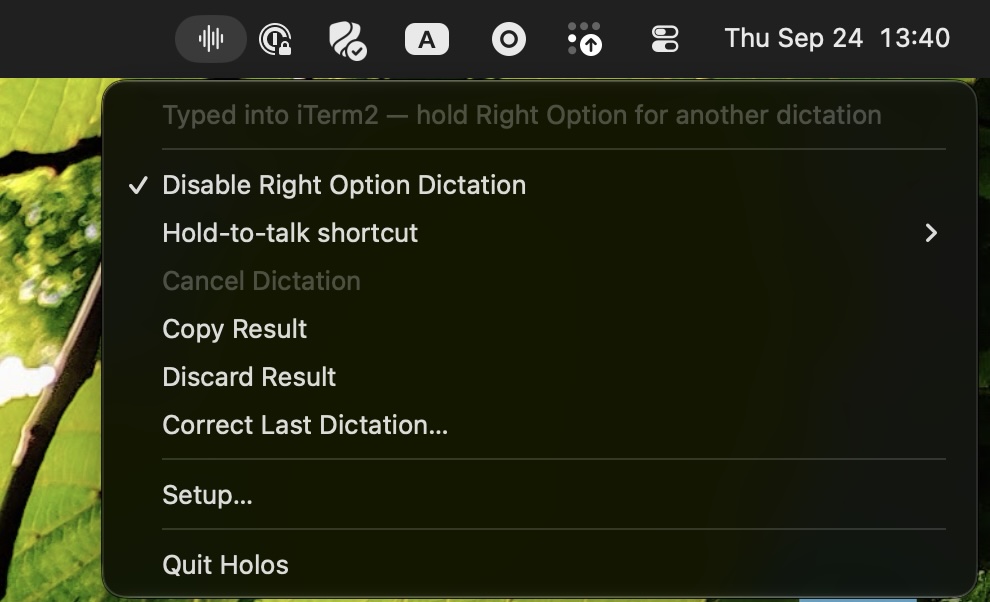
macOS has had its own dictation for years, and for some reason it never felt natural or smooth to me. Voice is Local works the way the third-party tools do, because that’s the way that feels smooth. I granted it a few permissions once, and I never have to deal with Apple’s dictation UI.
There’s no account, no server, and nothing to subscribe to. The only download is Apple’s speech model, which comes from Apple, once.
My favourite part is what’s not on the screen. There’s an optional preview toast, and I turned it off. While I’m dictating, the only sign anything is happening is the little microphone-in-use indicator macOS puts in the menu bar. That’s all I need. The text goes where the cursor is, and nothing else gets in the way of my work.

Why it needs the newest macOS
This is a Mac-only tool, and a fussy one about which Mac. It exists because Apple rebuilt its speech framework recently. SpeechAnalyzer and SpeechTranscriber arrived in macOS 26, and they let an ordinary app run Apple’s on-device transcription directly, with the model downloaded and managed by the system. macOS 27 added AnalyzerInputConverter, which turns live microphone audio into the format the analyzer wants, and Voice is Local relies on it. I tried building it for macOS 26, and the compiler refused.
So Voice is Local requires macOS 27, and macOS 27 only runs on Apple Silicon. If your Mac can’t run the latest macOS, this one isn’t for you.
It doesn’t need Siri or the macOS Dictation setting, and it never talks to either. I do have Siri turned on, though, and I haven’t tried it with Siri off.
The small things
- No ums. Filler words are removed by default. My test sentence was “look ma, no ums”, and it passed.
- It learns corrections. If it hears a name as “Gwen” and it should be “Gwyn”, I fix it once: Correct Last Dictation in the menu opens what I just said, I change the word, and click Learn Corrections. Voice is Local applies the fix from then on and also hints the word to Apple’s recognizer, so it gets it right more often in the first place. A Corrections window shows what it has learned, and I can edit or remove any rule there.
- It works in awkward places. Native text fields get the text through macOS Accessibility. Terminals and web editors, which don’t cooperate with that, get it typed as keystrokes. Getting ChatGPT’s web input to accept it took a few rounds, and it works now.
- It won’t paste garbage. It refuses password fields. If it can’t write into a field safely, it keeps the text for Copy Result instead of guessing.
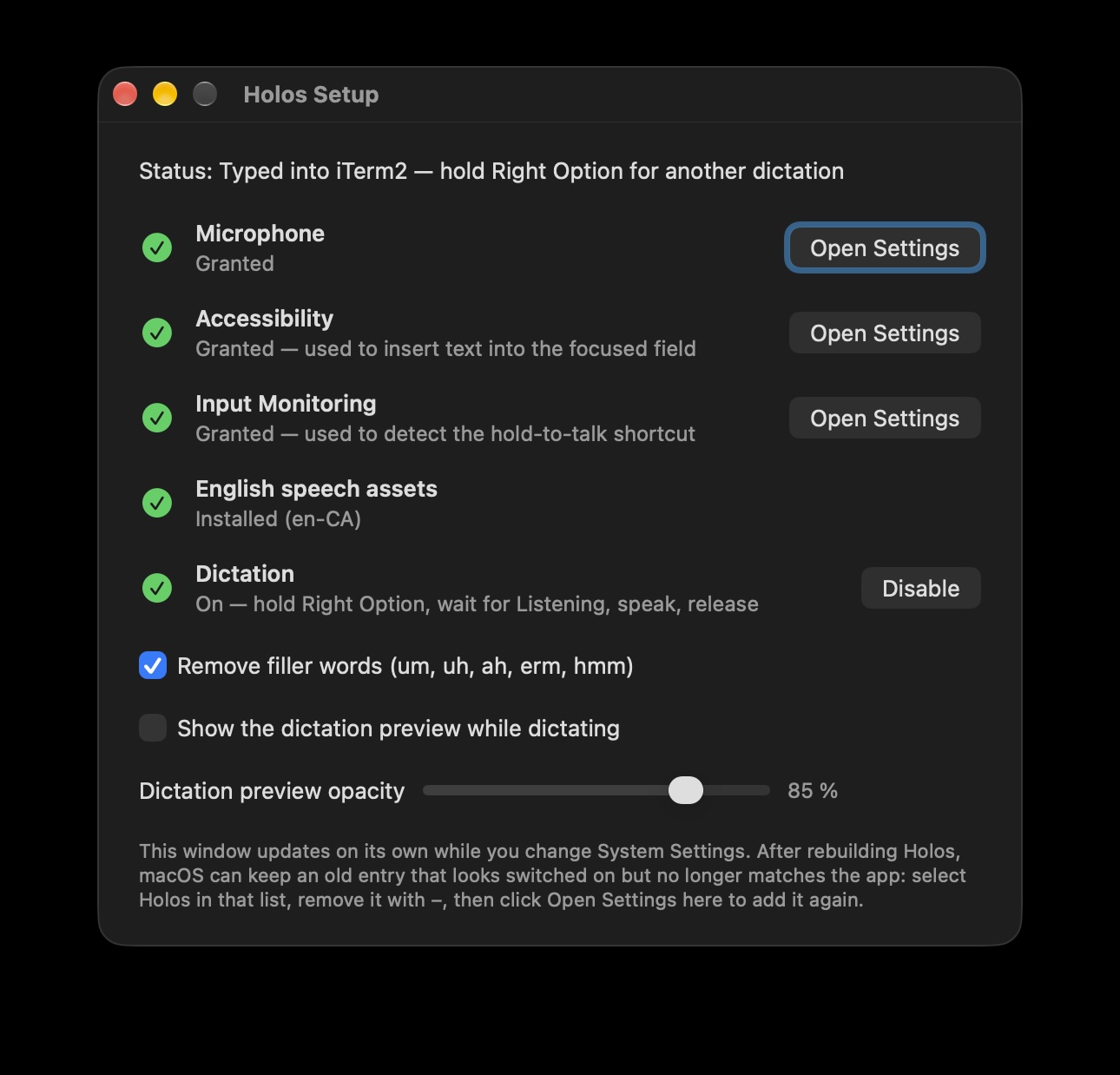
- Setup is one window. It walks through the three permissions macOS wants (Microphone, Accessibility, Input Monitoring) with live status, installs the speech model, and lets you pick the shortcut. Right Option is the default; Control-Option-Space is the alternative.
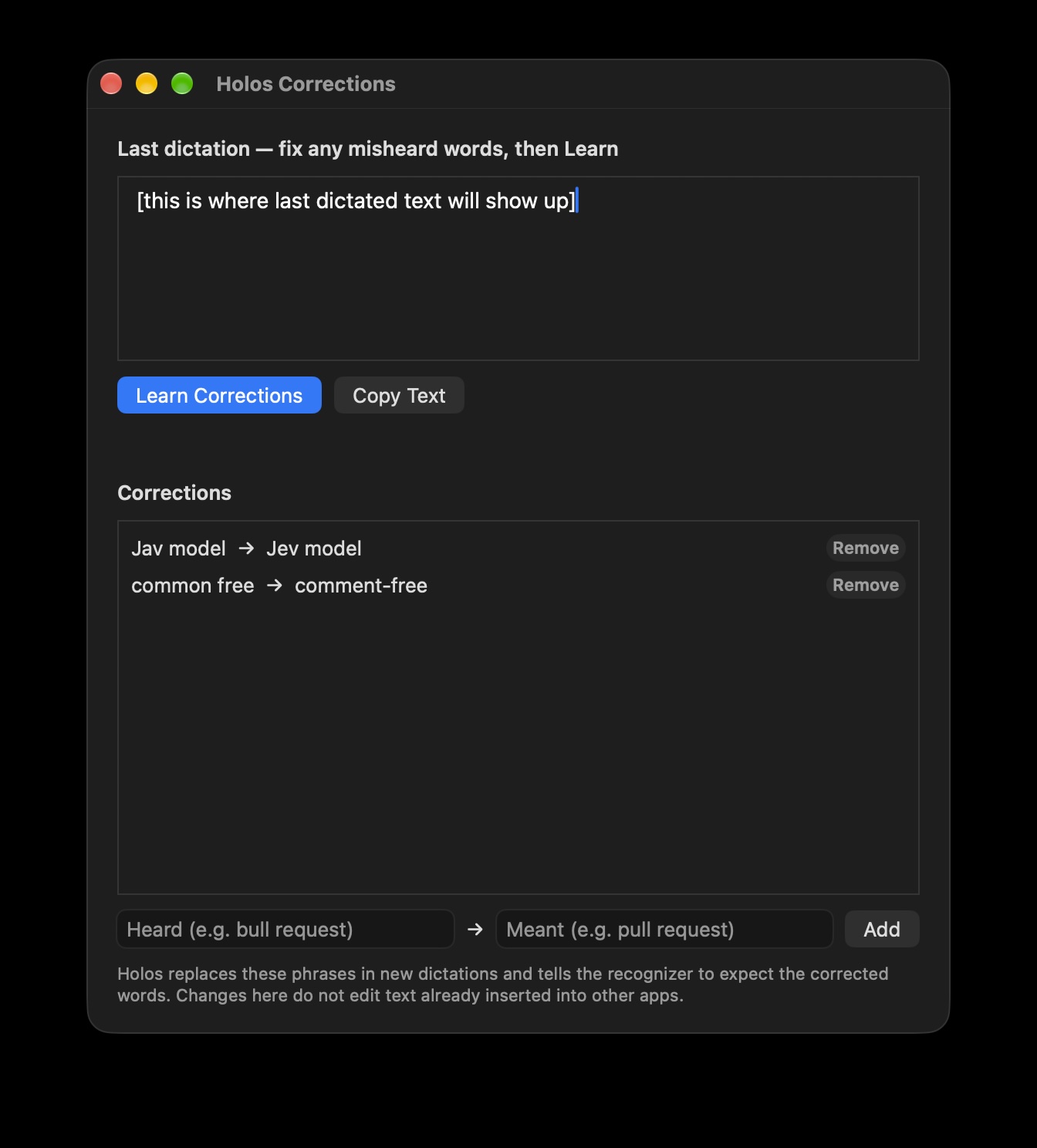
One hold lasts up to two minutes, then it finalizes. That’s a long paragraph. For now it’s English only.
Building it
You need an Apple Silicon Mac on macOS 27 and Xcode with Swift 6.4.
git clone https://github.com/orlenko/holos.git
cd holos
./scripts/build-app.sh
open build/VoiceIsLocal.app
The Setup window opens on first launch. Grant the three permissions, click Install for the speech model, enable dictation, then hold Right Option and talk.
It’s an ad-hoc signed personal build, not notarized and not in the App Store. To update it later, run ./scripts/restart-app.sh: it quits the app, rebuilds it and opens it again. Don’t run build-app.sh over a running copy. The script refuses anyway, because replacing a running app breaks its signature and macOS asks for all the permissions again. The README and the dictation validation notes have the details.